CS2 High Ping Fix: Matchmaking Ping, Server Errors & Connection Timeouts
How CS2 picks your server, the setting that controls it, and what to do about "acceptable ping", VAC verification and timeout errors.

High ping in CS2 has two very different causes: you're being matched onto a distant server, or something between you and every server is slow. The first is a setting; the second is your connection. This guide covers both, plus the connection errors people hit along the way.
Ping vs Jitter
Ping is round-trip time: how long a packet takes to reach the server and come back. It's mostly set by distance. A steady 70 ms is playable; what makes a connection feel broken is usually jitter or packet loss, not the number on the scoreboard. If your ping is low but the game still feels bad, read those guides instead.
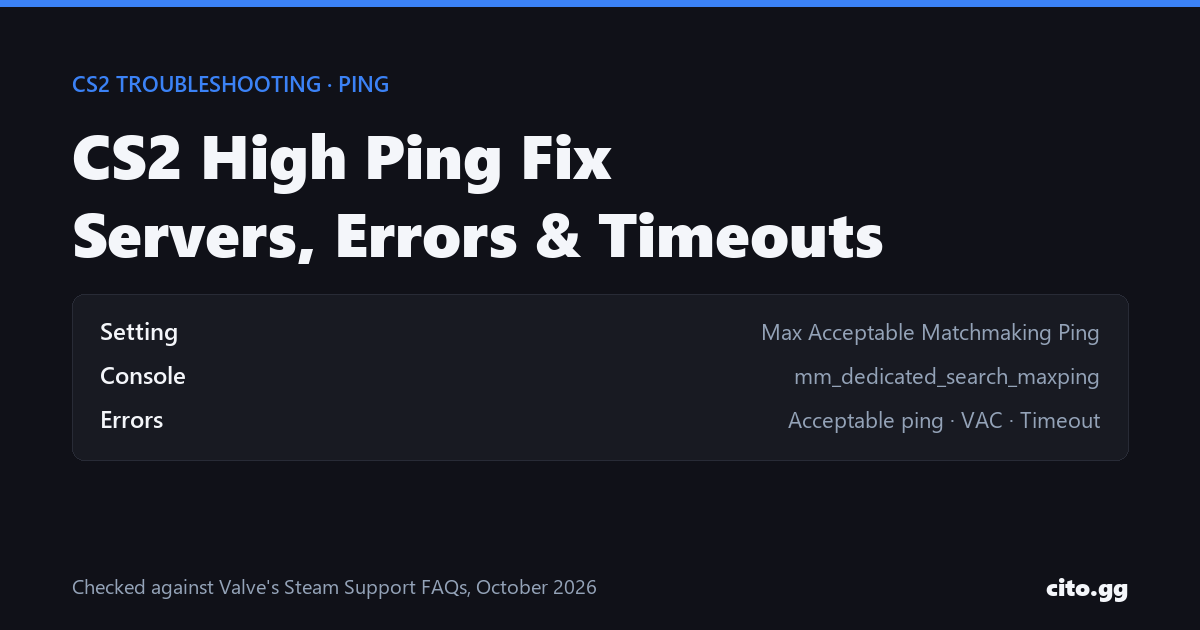
Max Acceptable Matchmaking Ping
In Settings → Game, Max Acceptable Matchmaking Ping limits which Valve data centers matchmaking is allowed to put you on. The menu lists your nearest official data centers with your ping to each, so you can see where the cut-off falls.
- Lower it if you keep landing on distant servers. Queue times may rise, especially at off-peak hours or in smaller regions.
- Raise it if you can't find matches at all.
The console variable mm_dedicated_search_maxping does the same job and defaults to 150.
"Failed to Locate … Acceptable Ping"
The full error reads "Failed to locate official game servers with acceptable ping". It means no data center fell under your Max Acceptable Matchmaking Ping when you searched. Raise the setting (or mm_dedicated_search_maxping) until your nearest data centers are inside the limit, then search again. If your ping to every data center is unusually high, the problem is your connection — see the next section.
High Ping on Every Server
If ping is high to every data center, including the nearest one, the delay is on your side of the internet:
| Cause | Fix |
|---|---|
| Bufferbloat — ping climbs when the line is busy | Pause uploads and downloads; enable SQM on your router |
| Wi-Fi | Switch to Ethernet |
| A VPN or proxy | Turn it off; it adds a detour to every packet |
| Background downloads | Pause Steam, launcher and Windows updates while you play |
| ISP routing at peak hours | Compare morning and evening; report persistent problems to your ISP |
CS2's official servers are reached through Valve's Steam Datagram Relay network, which already looks for the fastest route; there's no in-game routing setting to tune.
One change worth knowing: since November 2024, CS2 turns off damage prediction when your ping is high, so hit feedback can feel slower on a high-ping connection even when the hit registers.
VAC Was Unable to Verify Your Game Session
This error means VAC couldn't confirm your game files or system were in a trusted state. Valve's own steps for VAC disconnections, in order:
- 1.Close software that can conflict with VAC — Valve's FAQ lists tools such as Cheat Engine, DLL injectors, hypervisors, CCleaner and Steam idlers.
- 2.Restart your PC.
- 3.Exit Steam and repair the Steam service from an administrator command prompt:
"C:\Program Files (x86)\Steam\bin\SteamService.exe" /repair(adjust the path if Steam is installed elsewhere). - 4.Remove any modified game files, then verify the game: Library → right-click Counter-Strike 2 → Properties → Installed Files → Verify integrity of game files. A message that one or more files failed to verify is normal.
Valve's VAC FAQ also lists restoring Windows' default boot settings for systems where they were changed. Follow the Steam Support VAC FAQ exactly for that step.
Connection Timed Out & Failed to Connect
"Connection to server timed out" and "Failed to connect to the match" have no dedicated Valve article. They mean your client and the server stopped exchanging packets, or never started. Players typically resolve them by working through:
- 1.Restarting Steam fully (exit from the tray icon, not just the window)
- 2.Verifying game files (path above)
- 3.Allowing Steam and CS2 through your firewall or security suite
- 4.Restarting your router and testing on Ethernet
- 5.Trying another network, such as a phone hotspot, to see whether the problem follows your connection
If the hotspot works and your home line doesn't, the cause is your router or ISP. If neither works, check Valve's server status before changing anything else.
Frequently Asked Questions
How do I lower my ping in CS2?
Lower Max Acceptable Matchmaking Ping in Settings → Game so matchmaking only uses nearby data centers, play on Ethernet, and stop uploads from saturating your line while you play.
What does mm_dedicated_search_maxping do in CS2?
It sets the highest ping a data center can have for matchmaking to use it, the same as the Max Acceptable Matchmaking Ping setting. The default is 150.
How do I fix "Failed to locate official game servers with acceptable ping"?
Raise Max Acceptable Matchmaking Ping (or mm_dedicated_search_maxping) until your nearest data centers are under the limit. If every data center shows a high ping, the problem is your connection.
How do I fix "VAC was unable to verify your game session"?
Close conflicting software, restart your PC, repair the Steam service, remove modified game files and verify the game's files — the steps in Valve's VAC FAQ.
Cito Editorial Team
@cito_ggCito.gg Research Desk
Settings, configs, and meta guides researched and verified by the Cito.gg editorial desk.
Related Analysis & Guides
Expand your competitive edge with related deep dives

How to Fix Net Jitter in CS2: Free Jitter Test + 5-Minute Fix
Test your jitter and bufferbloat in 20 seconds right on the page, then fix CS2 net jitter: the Telemetry graph (cq_netgraph was removed), Buffering for spikes, Wi-Fi and SQM.
Cito Editorial Team
CS2 Packet Loss Fix: Inbound vs Outbound Loss and What Actually Works
Fix packet loss in CS2: read the up and down arrows in Telemetry, separate inbound from outbound loss, and work through the fixes that help — no console command fixes real loss.
Cito Editorial Team
CS2 Stuttering & FPS Drops Fix: Settings Valve Recommends (and Launch Options That Don't Matter)
Fix CS2 stuttering and FPS drops: read frame time in Telemetry, use Valve's G-Sync + V-Sync + Reflex setup, cap FPS correctly, and skip placebo launch options like -tickrate.
Cito Editorial Team